
How BigLace works
Everything BigLace does on the phone and on the computer, explained from the start, for someone who has never used it.
What BigLace is
BigLace links your devices in a private network: Linux computers and Android phones. Once they are linked, you can chat, make calls and join voice rooms, see and control a computer's screen, open a terminal on it, exchange files, and even use your phone as the computer's webcam.
Messages, files and calls go straight from one device to the other, encrypted. Nothing is stored on another company's server: your chats stay on your devices.
- Device
- Each computer or phone with BigLace. In the list, each one shows up with the name you gave it.
- Account
- Who you are on the network. One person has one account and can have several devices on it, such as a laptop, an office computer and a phone.
- BigScale (the panel)
- Your network's server. It introduces devices to each other and keeps track of who can see whom, but it never sees your chats. The administrator looks after it.
Over the internet or local network
BigLace has two ways of linking your devices. You pick one with the switch in the computer's sidebar and on the phone's home card.
| Over the internet | Local network | |
|---|---|---|
| Where it works | Anywhere: at home, out and about, at work. | Only with the devices on the same network (the same Wi-Fi or cable). |
| What you need | An account on the BigScale server (you join with an invite, a key or a code). | Nothing: just pair the devices once. |
| Who shows up | Your devices and those of the people linked to you by an invite or a group. | The devices you paired. |
| What you can do | Everything in this guide. | Chats, calls, sending files, remote screen, terminal, webcam and the link between phone and computer. Not voice rooms or groups. |
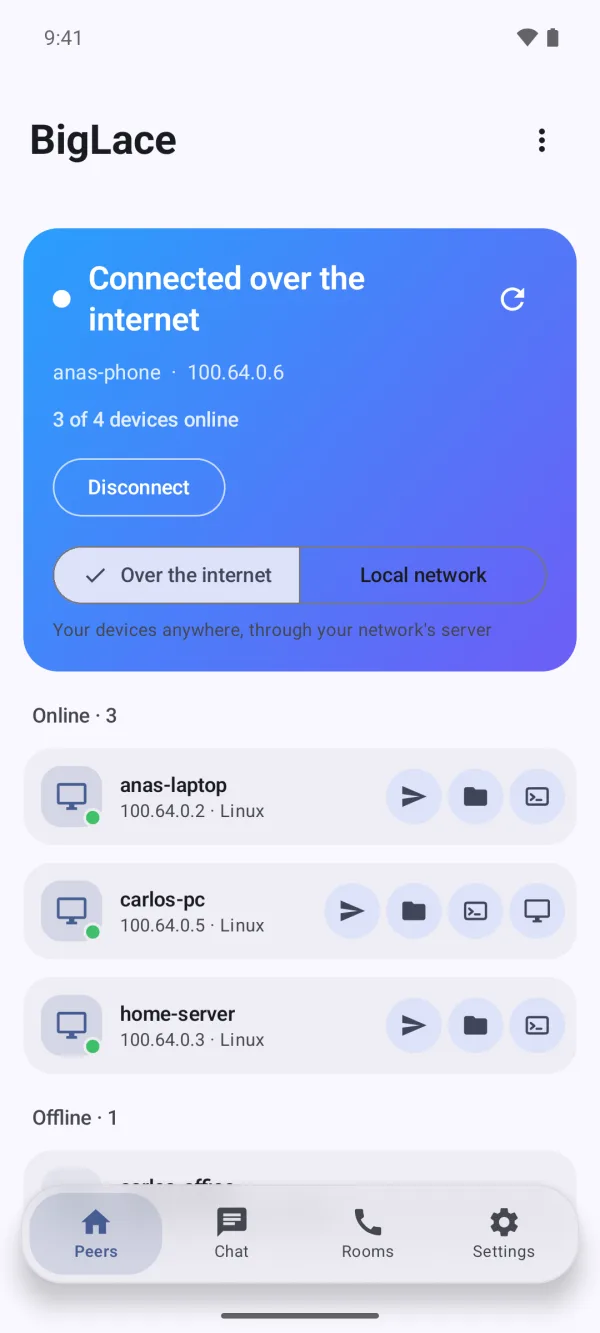
The two don't work at the same time. When you switch to Local network while the internet connection is on, BigLace asks Switch to the local network?, and the internet connection comes back when you pick Over the internet again.
Getting started
Install
On the computer
On BigLinux, the biglace package is in the community repository: install it from the software store or with sudo pacman -S biglace. It needs the tailscaled service; if that service is stopped, BigLace shows Start service.
On the phone
Download the app from the home page (Android 8 or newer). The app itself tells you when a new version is out, under Settings › Updates.
Joining the network on the computer
The first time, the Join the network screen shows four ways in. Pick the one that matches what you received:
- Sign in with my phone
- Your phone is already on the network with BigLace. The computer shows a code; on the phone, tap Scan QR code and point it at the code. The computer joins the same account as the phone.
- I have an invite
- Someone on the network sent you a link or a QR code. Paste the link, choose your name (it becomes your account) and a name for this computer. The invite works once.
- I have an access key
- The administrator made a key for you (it starts with
hskey-auth-). Enter the server address, the key and the computer's name. The key is only for getting in: after that, the computer stays on the network even if the key expires. - I'm the administrator
- Only for whoever looks after the BigScale panel: you sign in with the administrator's username and password.
When you leave the network but your account stays saved on the computer, you also get Sign in again as …, which brings you back without an invite.
Once you're in, use Connect in the sidebar. The button turns into Disconnect, and the top of the window shows Connected over the internet.
With Preferences › Make this user the tailscale operator, BigLace connects and disconnects without asking for the system password every time.
Putting the phone on the network
The easiest way is through the computer, which is already on the network:
- On the computer, open the ☰ menu and choose Connect a phone. A QR code appears; it lasts a few minutes and works once.
- On the phone, open BigLace and tap Scan QR code on the home card.
- Confirm the phone's name and tap Connect. The phone joins as one more device on your account.
You can also sign in from the phone without a computer: Settings has Join with an invite (paste the link you received), Sign in with panel account (administrator) and the Server URL and Pre-auth key (yours) fields.
Always use Connect a phone to add another device of your own. Joining with an invite creates a new account: to the network, the device now belongs to someone else, and features like the webcam (which only shows up between devices on the same account) stop working.
Names and photo
You have two names, and they are different:
- Username: this is your account, how people see you in chats (it shows as
@name). - Device name on the network: this is each device's name, as it appears in the device list.
On the computer
The pencil next to your name, at the bottom of the sidebar, opens Your names. The round photo next to it opens Change photo… and Remove photo.
On the phone
In Settings, the pencil next to your name opens Your names, and Choose photo changes your profile photo.
As you type, BigLace checks whether the name is free. If two devices try the same name, the server adds an ending, such as notebook-a1b2c3; renaming it with the pencil fixes that.
Accounts, invites and groups
Over the internet, you only see the devices of people who are linked to you. You always see your own; to see someone else's, the two of you need to be linked by an invite or a group.
Kinds of invite
An invite is a link (or QR code) that brings a new person onto the network. It works once and stays valid until it's used or cancelled. To create one, use Invite at the top of the computer's window (or Invite someone in the menu), or Groups and invites › Invites › Invite someone on the phone. You choose the kind of access:
- Just the two of us
- You and the person see each other's devices, and no one else's. This is the default kind.
- Also the group …
- Besides being linked to you, the person joins one of your groups and sees all of its members.
- A network of their own (administrators only)
- No link to you: the person sees only their own devices and whoever they invite later. It's a way to give someone an independent network on the same server.
- Only I reach them, to help
- Support access: see below.
The finished invite shows the QR code and the link, with Copy link. The Invites page (on the phone, the Invites tab of Groups and invites) lists the ones you sent and the status of each: Waiting to be used, Used, Expired or Cancelled. An invite that hasn't been used yet can be cancelled: the link stops working.
On some networks only administrators can invite new people, or each invite waits for an administrator's approval. In that case BigLace tells you, and you can still bring people who are already on the network into your groups.
Groups
A group brings several people together at once: your family, your office, a class. All members see each other's devices, and each group gets a voice room and a group chat.
On the computer
The Groups page, New group button.
On the phone
Settings › Groups and invites (or the person icon in Chat), Groups tab, New group.
- Create: give it a name (lowercase letters, numbers and hyphens, like
family) and tap Create group. You become the owner. - Bring people in: Invite to this group lists who is already linked to you; check them and use Send invitations. Each person gets the invitation under Invitations for you and chooses Accept or Decline. For someone who isn't on the network yet, create an Also the group … invite.
- Owner: can Rename, change the group photo, remove members and Delete group. Deleting only removes the group: the people stay on the network.
- Member: can Leave group at any time.
- Groups marked Network group (administrator) were created by the administrator in the panel.
Step-by-step example
The administrator invites Maria with A network of their own. The two can't see each other. Later, Maria creates a group and brings the administrator in:
It works for anyone: whoever is in a group sees the devices of all its members. If someone leaves the group (or the group is deleted), that link ends; links made by a Just the two of us invite remain.
Support access
To help someone remotely without giving them access to your devices: create an Only I reach them, to help invite and choose For how long (1 hour, 1 day or 1 week).
- Only the device you created the invite on can reach the person's devices. They can't see yours.
- The person sees a notice that you can reach their devices until a given time, with End now.
- Seeing their screen always asks for their permission, every time.
- You can also end it early: in Invites › Support access, End.
Devices
The Devices page (on the phone, the Peers tab) lists this device and every device you can reach, with the online ones first. Favorites stay at the top.
Each row shows the name, the address, the system and the status: online, offline, the delay in milliseconds, and whether the link is direct or via relay (going through a helper server, when the network doesn't allow a direct link). Your phones linked to the computer also show their battery and free space.
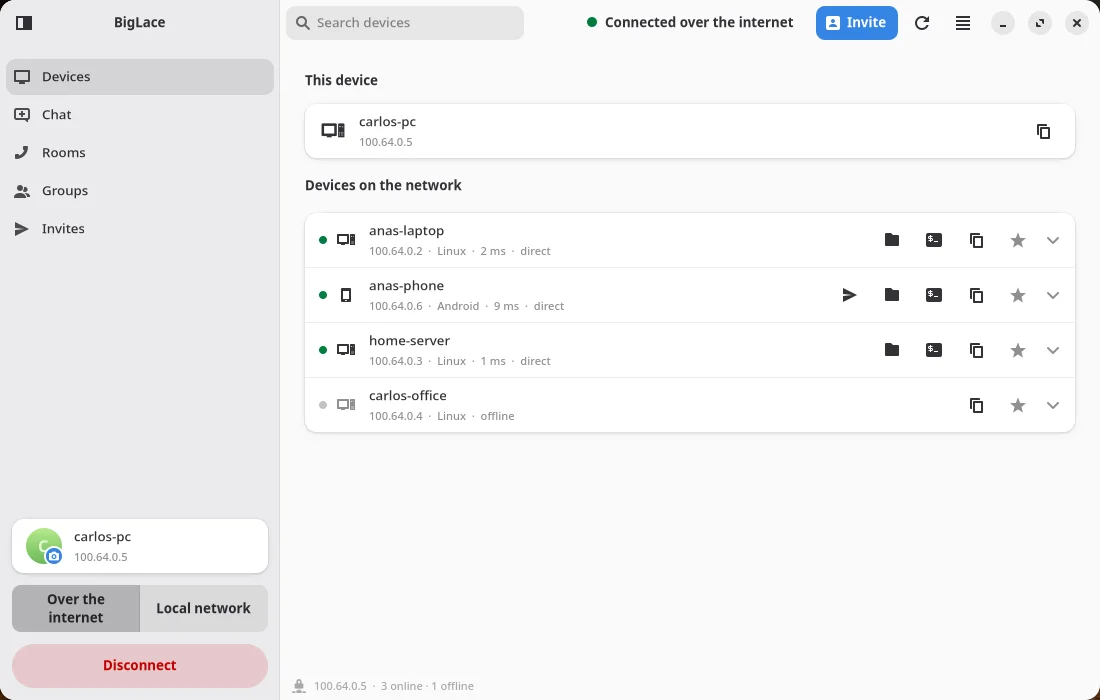
Buttons on each device
- See and control the screen
- Opens the computer's remote screen. The person on the other side has to allow it.
- Open terminal (SSH)
- Opens a terminal on the device.
- Open files (SFTP)
- Browses the device's files.
- Send files
- Sends files without opening a chat. The other side accepts or declines.
- Use as webcam
- Only on phones on your account: see Phone as a webcam.
- Turn on over the network (Wake-on-LAN)
- Shows up on a computer that is turned off when BigLace knows its network card: it tries to turn it on remotely.
- Pin to top (star)
- Keeps the device at the start of the list.
- Copy IP address
- Copies the device's network address.
Clicking (or tapping) the row opens the details: DNS name, IPv4, IPv6 (each with a copy button), Owner, BigLace version, Tags and Last seen. In SSH login (override) you set which user the terminal signs in as on that device. On the computer, a device that offers a way out to the internet shows Use as exit node: all of this computer's traffic then goes out through it.
On the computer, the Search devices box at the top filters the list by name, address, system or owner.
Chats
The Chat page brings together direct chats, group chats and a To your other devices chat (on the phone, My devices), handy for sending something from one of your devices to another. Messages go straight between devices and are stored on them.
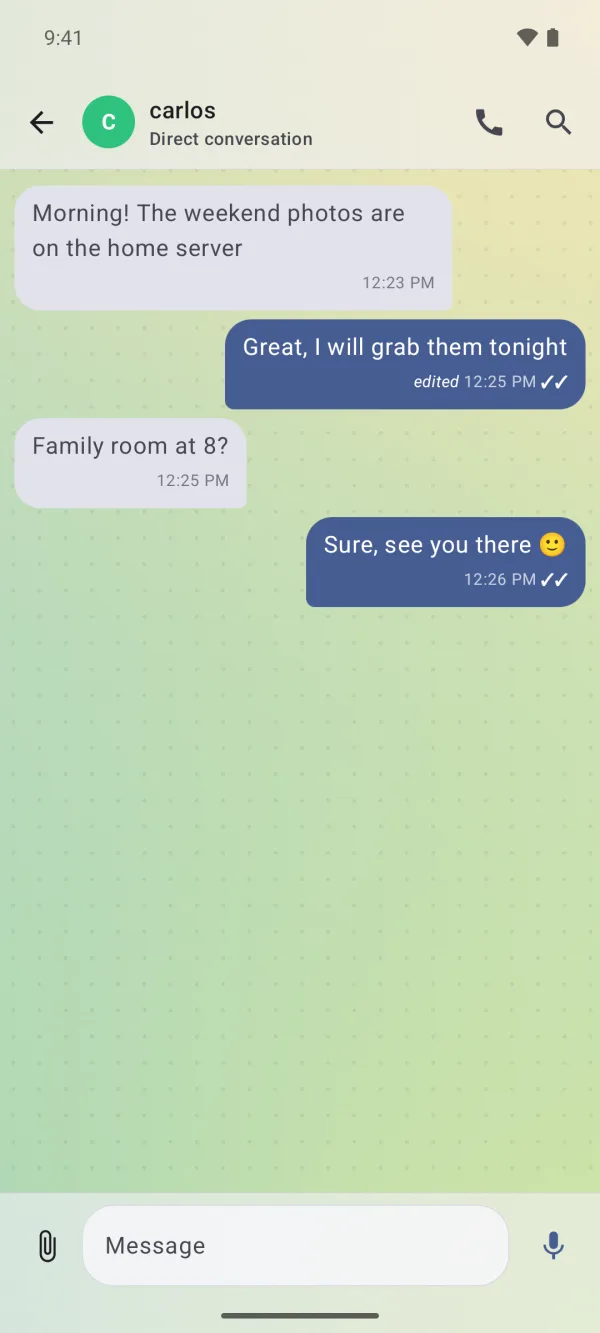
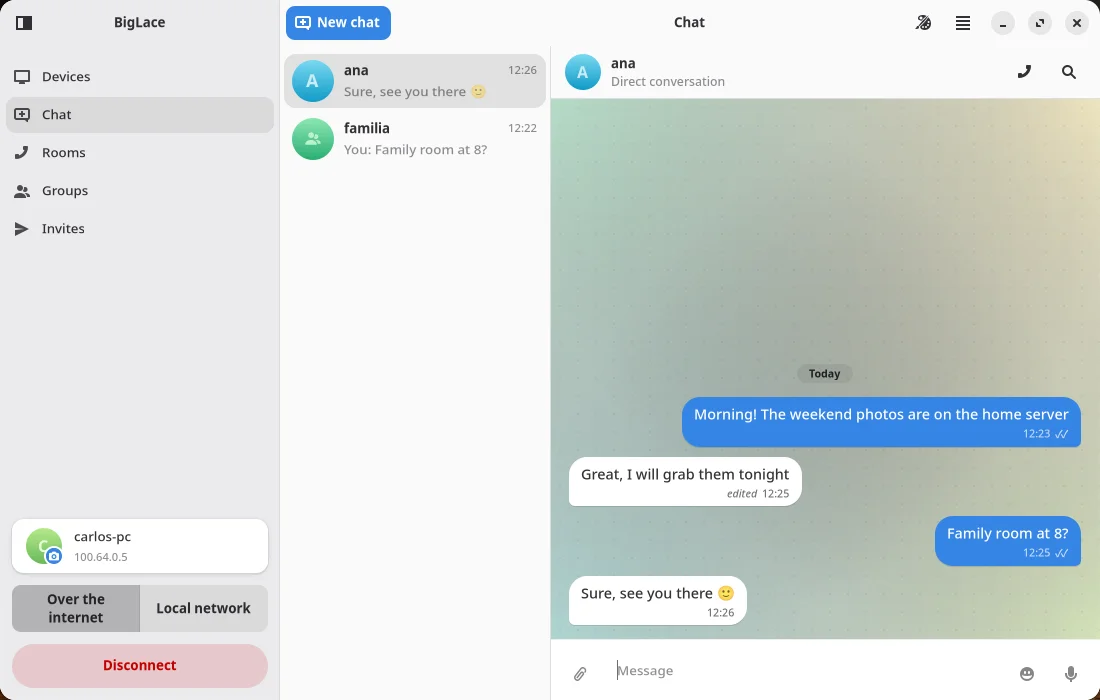
- New chat: New chat (computer) or + (phone) lists the people and groups you can reach. The People on the network list shows who is online.
- Writing: Enter sends and Shift+Enter starts a new line (on the computer). Type
@to mention someone. On the computer, right-clicking the text box brings up emojis and Formatting (bold, italic, underline, strikethrough, monospace and link). - Attaching: the paperclip sends photos, videos and files (on the computer you can also drag and drop; on the phone, Take photo, Record video and Choose from gallery).
- Voice message: with the box empty, the microphone records; send it or throw it away. At least one second, at most 15 minutes.
- Actions on a message (right-click on the computer, tap on the phone): emoji reactions, Reply, Copy, Forward, Pin, Edit (only your own text messages), Select several and Delete. On the phone, swiping a message sideways replies to it.
- Deleting: For me removes it only from your device; For everyone (only on your own messages) deletes it everywhere.
- Searching: the magnifying glass searches inside the chat.
- Removing a chat: right-click (computer) or long-press (phone) a direct chat to delete its messages from this device. If a new message arrives, it comes back.
- Chat theme: the palette icon picks the appearance (system, light, dark), the color of your messages and the background, including a picture of your own.
A message to someone who is offline waits and is delivered when they come back.
Calls
In a direct chat, the Call button offers Voice call and Video call. The person receiving it sees a notification with Answer and Decline. During the call, the bar shows the time and Hang up; on the phone, you can mute, turn the camera on or switch it, and share your screen.
Calls also work on the local network, between paired devices, from their chat. When a phone linked to the computer gets a phone call, the computer can pause the music (see Phone and computer together).
Voice rooms
Each of your groups has a voice room that is always open. On the Rooms page, each room shows who is in it; Join puts you there. The sound goes straight between the participants.
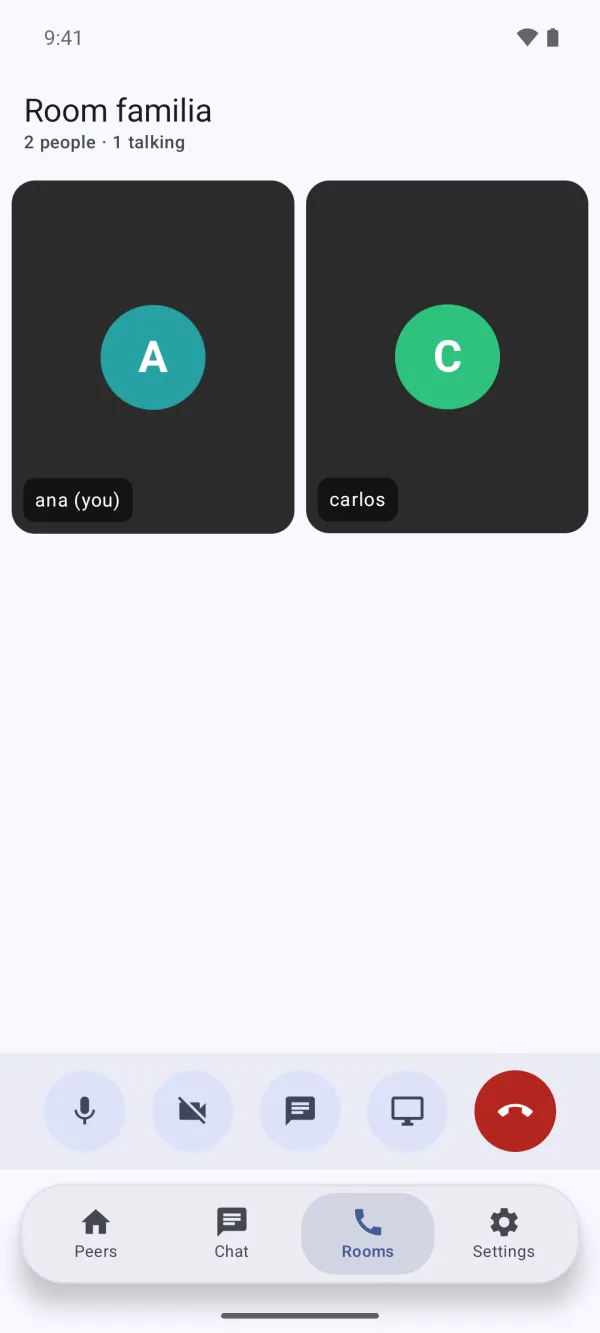
- Mute / Unmute (on the computer also with Ctrl+Alt+M, and from the tray).
- Turn on camera, and choose which camera when there is more than one.
- Share screen: everyone can Watch. On the computer, Include the computer's sound when sharing the screen brings videos and music along.
- Whoever is sharing can Give control to someone watching (and Take back control). Someone watching can Request control; with no answer in 60 seconds, the request is declined.
- The group chat opens next to the room.
- Leave exits the room.
Rooms only exist over the internet, because they depend on groups.
Remote screen
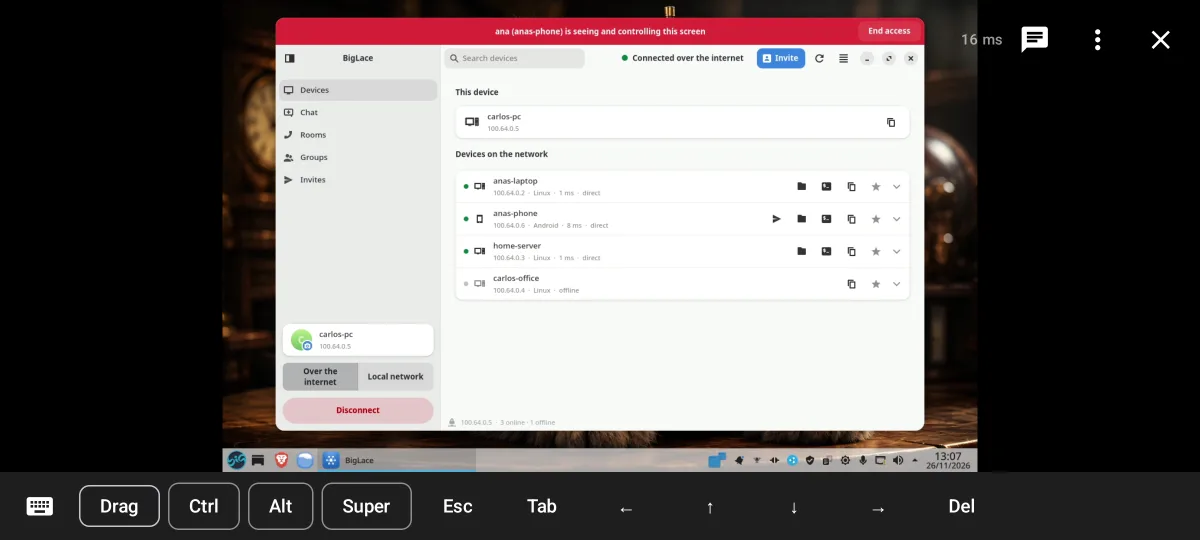
With a computer's See and control the screen button, you see its screen and use the mouse and keyboard, with sound. The person on the other side always approves first: they see Allow remote access?, which declines on its own after 60 seconds. While someone is in control, a banner says who it is, with End access.
From the computer
- Full screen (F11) and muting the remote sound.
- Fit …'s resolution to this window, when the other computer allows it.
- Power menu, on your own computers: Restart and reconnect, Restart the session and Shut down.
From the phone
- A tap is a click; a long press is a right-click; one finger moves the pointer; two fingers scroll; pinching zooms.
- The key bar has Ctrl, Alt, Super, Esc, Tab, arrows, Del and Drag.
- The ⋮ menu turns the sound on, rotates the screen and, on your own computers, restarts or shuts down.
- Back or Home shrinks the screen to a small floating window; only Close ends it.
Terminal and files
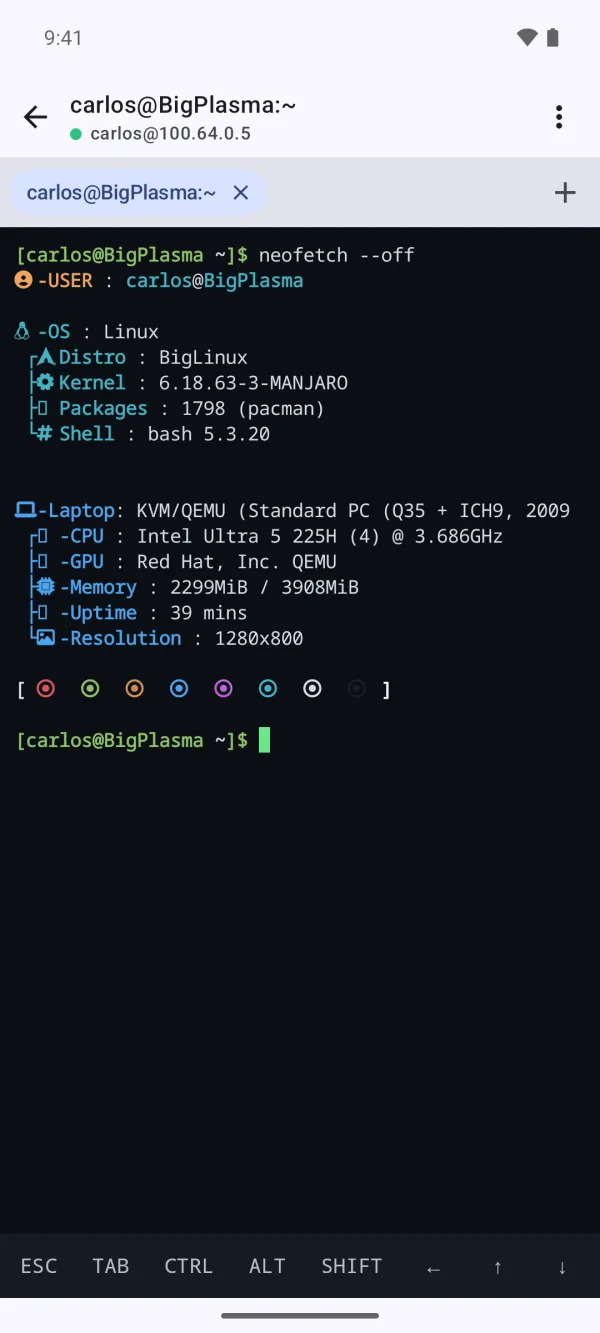
The terminal opens an SSH session on the device, and the file browser uses SFTP. You don't need to open any ports on your router. The target computer needs the SSH service (sshd) turned on.
On the computer
Each device's Open terminal (SSH) and Open files (SFTP) buttons open your system's terminal and file manager, already connected.
On the phone
The same buttons, or the ⋮ menu on the home screen (Terminal and Files). Each connection gets its own tab; + opens another one or duplicates the current one.
On the phone, when you don't start from a device, fill in Host / tailnet IP, Port and Username, choose the Authentication (Auto, Key or Password) and tap Connect; Test checks without opening the session.
- Extra keys: ESC, TAB, CTRL, ALT, SHIFT, arrows, HOME, END, PGUP, PGDN and some symbols; ✎ lets you write a whole line before sending it; A− and A+ change the text size.
- Gestures: pinching changes the text size; swiping sideways switches sessions.
- Files: a tap opens; each item's menu has Open on phone, Share, Rename, Move and Delete; the folder menu has New folder and Upload file….
- SSH key: in Settings › SSH key, Generate SSH key. After you sign in with a password, the app offers to install the key on the computer so you won't be asked for a password next time.
Sending files
Besides attaching in a chat, a device's Send files button sends files straight to it. On the other side, … wants to send you a file appears, with Accept, Save to… (choose the folder) and Decline. You can follow along as the person accepts, declines or finishes receiving.
Phone and computer together
When the phone and the computer are both yours, they work together:
- Battery and space: on the computer, the phone's row shows its battery and free space.
- Notifications: in Settings › Your computers, turn on Show notifications on the computer, with reply (Android asks you to allow notification access). Messages from the phone show up on the computer, and you can reply from there.
- Clipboard: with Share the clipboard turned on in both (on the computer, in Preferences), what you copy on one is ready to paste on the other, text or image. Android only lets apps read what was copied while the app is open: use Send clipboard in the notification. On GNOME, turn on the BigLace extension for GNOME that BigLace offers.
- Open on the computer: in any app on the phone, share a link and choose Open on computer.
- Phone calls: Pause the computer's music during calls pauses whatever is playing on the computer when the phone rings.
Over the internet, this applies to the phones on your account. On the local network, to the ones you marked as My phone and My computer (see Local network in detail).
Phone as a webcam
The phone's camera and microphone can become the computer's webcam and microphone, for use in the browser (Jitsi, Meet), in OBS or in any calling app.
- On the computer, in your phone's row, click the webcam button (Use as webcam).
- Choose Camera (Front camera or Back camera) and/or Microphone, and click Start.
- The phone shows Use this phone as a webcam for …?: tap Start (or Not now). With no answer in 60 seconds, the request is declined.
- In the app that uses the camera, choose the BigLace camera.
- While the webcam is on, the button turns orange; clicking it brings up Switch camera and Stop the webcam.
- On the phone, the Webcam on for … card on the home screen, and the notification, have Switch camera and Stop.
- The picture follows the phone whether it's upright or sideways.
The webcam button only shows up for phones on your account (over the internet) or paired with you on the local network. Never for someone else's phone.
Local network in detail
On the local network, devices find each other on their own on the same network and connect directly, with no account and no server. Before that, they need to be paired once.
- On both devices, choose Local network.
- To pair a phone, click Pair a phone on the computer; on the phone, Scan a computer's code. Between two devices that see each other in the Devices nearby list, you can also tap Pair.
- Check that both show the same six-digit code and confirm with Pair on both.
- Each paired device shows up under Devices nearby with the usual buttons: chat, call, send files, terminal, files, screen and webcam.
- Paired, not nearby: the pairing stays, but the device isn't on the network right now.
- Forget removes the pairing and the chat with that device.
- My phone and My computer: mark them on the computer (in the phone's row) and on the phone (⋮ menu in the computer's row). Only with both marks does the phone pass notifications, battery and clipboard to the computer. That way, a friend's paired phone never gets what you copy.
Some routers block the announcement devices use to find each other on the network. Even so, a phone marked as yours reaches the computer at its last known address, and the row shows up as nearby. The local network needs Android 10 or newer.
Who can use this computer
On the computer, Preferences › This computer shows who has already asked to see or control this screen, and for each person you choose Ask every time, Always allow or Never allow.
The History of accesses, kept only on this computer, lists who connected, to what (screen, terminal, files, restart, shutdown) and the result. Clear erases the history.
When someone opens a terminal or browses this computer's files, a notification appears with End access, which is also in the tray.
Preferences and Settings
Computer preferences
The ☰ › Preferences menu (Ctrl+,):
- Connect automatically when BigLace opens.
- Start BigLace with the session.
- Reconnect on drop, trying again with longer and longer waits.
- Notify on peer changes when devices come or go.
- Share the clipboard with my phone.
- Local network without a server, the same as choosing Local network.
- Make this user the tailscale operator, so it doesn't ask for a password.
- Sign out: removes this computer's identity from the network.
The ☰ menu also has View tailscaled logs, About BigLace and, for administrators, Open admin panel.
The tray shows the status, and its menu has Show BigLace, Connect/Disconnect, the voice room controls, End remote access and Quit. Closing the window leaves BigLace running in the tray.
Phone settings
- Profile photo and the pencil for your names.
- Groups and invites.
- Connection: server, key and device name; Connect when app opens (on by default) and Connect on boot of the phone.
- Forget this device: erases the phone's identity on the network; to come back, you have to sign in again.
- SSH key and Forget trusted SSH hosts.
- Updates: the installed version and Check for updates.
- Your computers: notifications, clipboard and music during calls.
- Local network, Diagnostics (Record a log and Send log) and About.
While connected, BigLace keeps running in the background, with a notification that shows how many devices are online and offers Disconnect.
Common problems
- I connected, but nobody shows up.
- You only see people linked to you by an invite or a group. Ask for a Just the two of us invite or join a group together.
- My phone shows up as someone else and the webcam doesn't appear.
- The phone joined with an invite and became a different account. On the phone, Settings › Forget this device; on the computer, ☰ › Connect a phone; then scan the code with the phone.
- The device's name got a strange ending.
- A device with that name already existed. Change it with the pencil for your names; the administrator can delete the old device in the panel.
- On the local network, the device stays not nearby.
- Check that both are on Local network and on the same network (guest Wi-Fi keeps devices apart). If the router blocks the announcement between devices, mark My phone and My computer: the phone then connects using the saved address.
- I signed out by mistake.
- If the account stayed saved, use Sign in again as …. If not, sign in with your phone (Sign in with my phone), with an invite or with a key from the administrator.
- The app doesn't show the BigLace camera.
- Close and reopen the app after starting the webcam. On the computer, the package needs the
v4l2loopbackmodule loaded (it comes set up with the package). - The terminal won't connect.
- The target computer needs the SSH service turned on (
sudo systemctl enable --now sshd) and a user that exists on it (set it in SSH login (override)).